Hermes Agent Full Setup: Local, Private, Free with Gemma 4 and Ollama
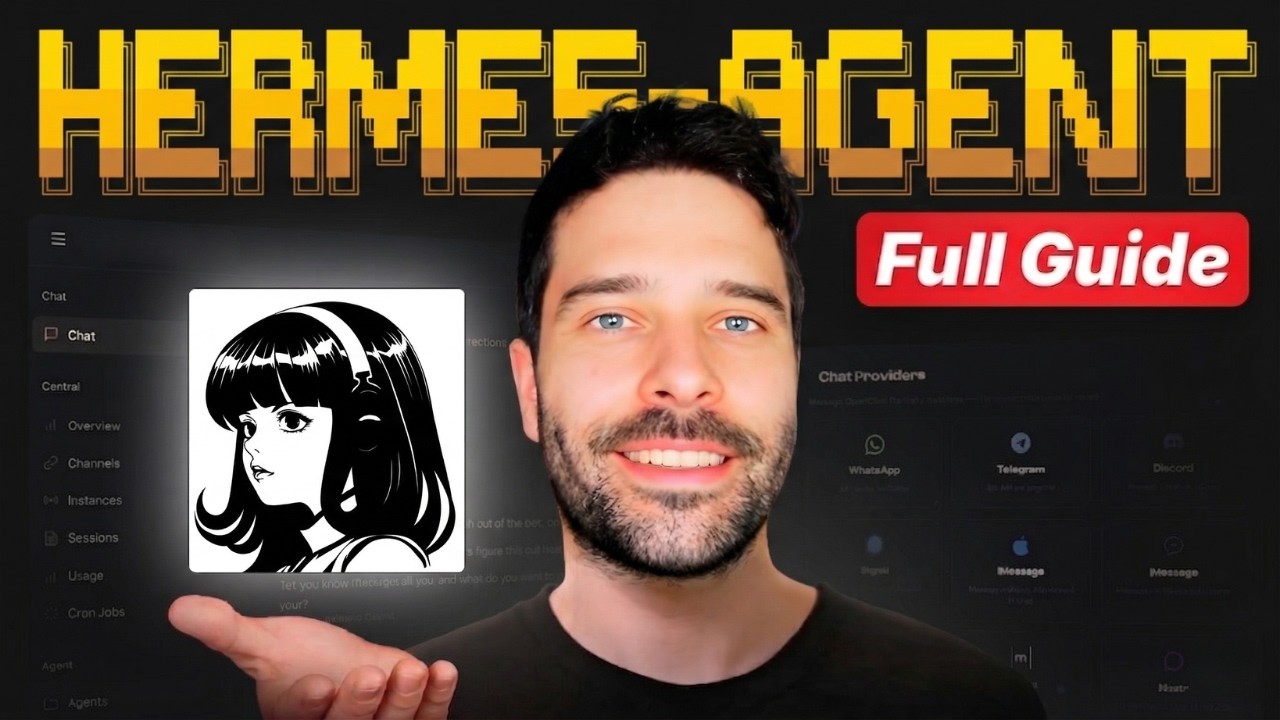
Bart Slodyczka shows the complete setup for a fully local, private, and free Hermes agent — using Ollama to host Gemma 4 E4B on your own machine, self-hosted Firecrawl (via Docker) for web search, and Telegram for the chat interface. Every component runs on your hardware with no cloud API costs. The video covers model selection, context compression, session reset configuration, and securing Telegram access.
"Hermes Agent Full Setup Tutorial: How to Setup Your First AI Agent (Gemma 4)" by Bart Slodyczka — Watch on YouTube →
Key Takeaways
- Minimum viable local model: Gemma 4 E4B (9.6 GB). Bart tested E2B (7 GB) first — it failed basic web search instructions. E4B worked. If you're memory-constrained, test the smallest model that can follow multi-step tool instructions reliably, not just generate text.
- Ollama endpoint is always
http://localhost:11434/v1. Set this as your custom endpoint in Hermes. All models you download viaollama pullappear automatically in Hermes's model selector without any additional configuration. - Self-hosted Firecrawl via Docker gives Hermes private, unlimited web search. The cloud version of Firecrawl costs money per request and sends your queries to their servers — the Docker version runs entirely on your machine.
- Set session reset to avoid context bloat. With smaller local models (128K token context windows), accumulated conversation history degrades performance. Use "daily at 4AM" or "inactivity timeout" mode so the context gets cleared regularly.
- Lock down your Telegram bot immediately. During setup, Hermes asks for your Telegram user ID. Leave it blank and anyone who finds your bot can talk to it. Add your own ID to restrict access. Find your ID via the @raw_data_bot Telegram bot.
Setup Commands
The key commands from the tutorial:
Commands & Code Mentioned
# Install Ollama (run in terminal)
# Download from ollama.com and install

# Pull a model
ollama pull gemma4:4b-it-q8_0

# List installed models
ollama list

# Ollama API base URL (set in Hermes)
http://localhost:11434/v1

# Hermes install command (from GitHub)
# See github.com/NousResearch/hermes

# Start Hermes
hermes

# Reconfigure Hermes anytime
hermes setup
Configuration Choices Explained
Several Hermes setup options that trip up first-time users:
- Tool progress display: Set to "all" to see every micro-step the agent takes (file reads, web searches, etc.) — useful while debugging. Disable in production if you just want clean responses.
- Context compression (default 0.5): At 0.5, Hermes compresses context when the window reaches 50% capacity. Lower this for smaller models — they degrade faster as context grows.
- Max tool calling iterations (default 60): The maximum number of tool calls per conversation turn. Deep research tasks (web search → summarize → follow links → repeat) can hit this. Raise it for complex agent tasks, lower for constrained use cases.
- Session reset mode: "Inactivity" resets if you don't message for N minutes. "Daily" resets at a fixed time (default 4AM). For agents doing long autonomous tasks, daily is safer — inactivity resets can interrupt mid-task runs.
Important Security Note
Bart recommends running Hermes on a separate device, not your main computer. Hermes agent — depending on its tool configuration — can access local files, run commands, and read system state. On your main machine, this includes browser sessions, saved passwords, and sensitive files. A dedicated older laptop or a cloud VPS is safer for production use. See the Hermes setup guide for a full security considerations walkthrough.
Related on OpenClawDatabase
- Hermes Agent Setup Guide — comprehensive setup reference including cloud and local configurations
- Hermes Memory Guide — configuring Hermes's memory backends
- NemoClaw Local GPU Guide — alternative approach to running local AI models with full GPU acceleration
More Hermes news
 Hermes computer-use: giving each agent its own Linux desktop in a container
 Serena as an MCP server for Hermes: LSP-powered find-references and safe renames
 Running a Hermes agent in a real business: permissioning, skills and the trust ladder
 Hermes /loop: recurring agent wake-ups with real stop conditions
 DeepSeek V4 Pro 0813 driving Hermes agent: agentic benchmarks jump, cost stays low
 Nemotron 3.5 Lightning on vLLM: the Mamba flags for a local agent execution model
← Back to News digest · See also: Hermes guide