Summary
OpenAI Dots hands-on: setup, the privacy toggle to flip first, what it can do and where it was buggy
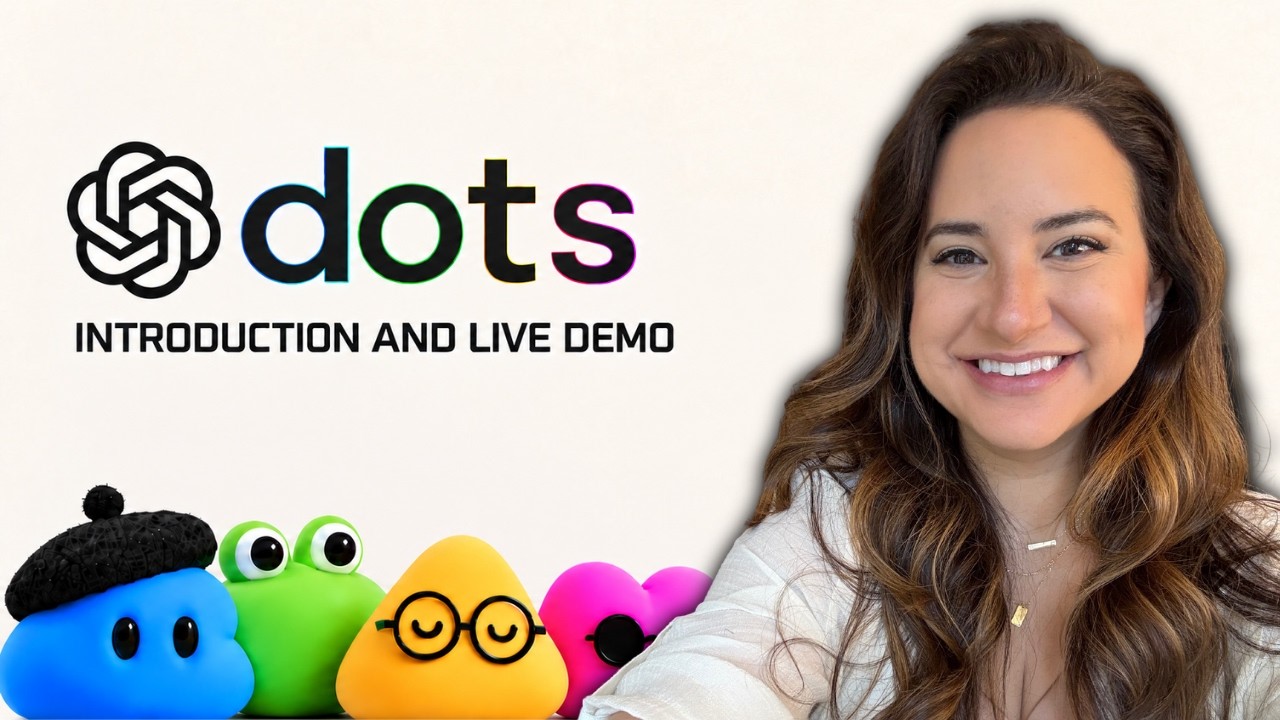
Allie K. Miller sets up OpenAI's Dots, a proactive agent in the ChatGPT desktop app that works on its own cloud computer, then tests it on scheduling, ticket hunting and Slack. It answers quickly and concisely and shows its computer, but she hit bugs saving an avatar and calling it from Slack, and it couldn't make phone calls. She also shows the one data-control setting to turn off first.
"OpenAI Dots: Full Setup and Live Demo" by Allie K. Miller — Watch on YouTube →
Who can use it, and the status when she tested
She says Dots is available to Pro and Business Premium users, not yet in the EU or UK, and every user gets one dot for now (OpenAI has said many more are planned). News coverage of the September 29 DevDay launch, such as SiliconANGLE's, describes the same rollout; we could not reach an OpenAI help page, so check availability there. She says it runs on GPT-6 Astra and compares it throughout with Meta Muse. Her framing: Dots is for ongoing responsibilities ('watch my Slack and tell me if meetings change', 'flag calendar conflicts'), rather than one-off prompts.
Setup, step by step
- Update the ChatGPT desktop app (Mac or Windows). The dot appears in the sidebar once updated. She recommends the desktop app over terminal or mobile for non-engineers.
- Turn off model-training data sharing first. In your ChatGPT settings go to Data controls and switch off the first option, 'Improve the model for everyone'. Team and Enterprise accounts don't show it because an admin controls it.
- Choose where the dot works. Its own computer (a virtual machine of its own, so it can browse and build files even when your computer is off) and optionally your local computer. She chose both.
- Name and customise it. Saving an avatar failed for her with 'couldn't save your changes'.
- Give it tasks in plain language, by typing or dictating. She told it she always forgets to book haircuts; it found an appointment on her calendar and asked follow-up questions. You can send several tasks, reply to a specific message with a right-click, and set recurring or scheduled work.
- Watch or take over its computer. A recent-activity view shows the tasks and the dot's browser; you can take over the screen to enter details. She notes Meta Muse also lets you stop the virtual machine's action, which Dots didn't offer.
- Connect Slack (optional): it adds the dot to a Slack workspace with a permissions prompt and gives it a channel; she set a daily summary of her team's AI use cases. Calling the dot from Slack failed with 'couldn't connect the call'.
What worked and what didn't
- Worked: very fast replies with read receipts; short answers instead of long chains of thought; searching events and dates; choosing a time on her calendar for a tour; recurring tasks; a visible activity trail.
- Didn't: it said it couldn't make outbound phone calls (she says Sam Altman said it could); payment through Link (Stripe's wallet) wasn't integrated; ticket buying got only as far as preparing; settings and avatar saving were buggy.
- Not like Codex: everything is natural language, with no need to know how to configure an MCP connection by hand.
Gotchas & Caveats
- A first-impression test, early after launch, by a reviewer who also flags that OpenAI shipped with obvious bugs. Features may have changed since.
- The claim that Dots runs on GPT-6 Astra and that every dot has its own virtual machine is her account; verify in OpenAI's documentation.
- She suggests a VPN for people in unsupported regions. We don't recommend that: check the terms of service first.
- Letting an agent operate your local computer, calendar and Slack is a real permission grant. Review what each connection can do before enabling it.
- The video contains opinion about product naming and OpenAI strategy that is not setup information.
Key Takeaways
- Flip 'Improve the model for everyone' off before trying any new ChatGPT agent.
- Frame tasks as ongoing responsibilities with a schedule or trigger, not one-off prompts.
- The ability to watch and take over the agent's own computer is a useful safety feature; note which products let you stop it.
- At launch, expect to retry: avatar saving, Slack calling and phone calls all failed in her test.
More ChatGPT news
 Build your own agentic harness in Python: the loop, tool calling, MCP servers, memory and model switching
 GPT-6 Astra Ultrafast in Codex: how to switch it on, what it costs, what it built
 ego lite: a Mac browser your agent drives through a skill, in its own "space"
 The same coding agent in CrewAI, the OpenAI Agents SDK and LangGraph — and when to pick each
 GPT-6 Sol and Luna: where each one lives, what it costs, and which tier to point an agent at
 A map of the 5-hour Codex course: 18 core concepts, an AI operating system, skills, and a 15-task Codex vs Claude Code bake-off