Deep dive
Local AI Agentic Coding: Model Selection, VRAM Guide, LM Studio Setup
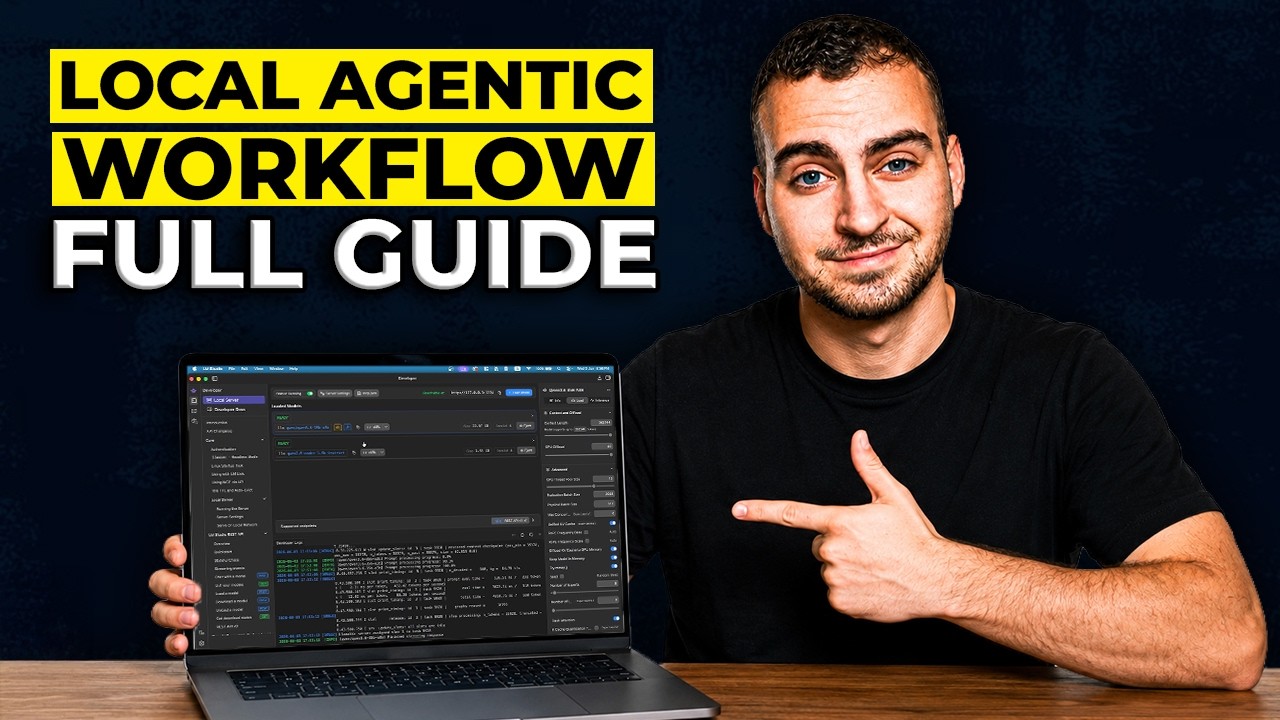
Tech With Tim covers the full workflow for running agentic coding completely locally — free, offline, and private. The guide explains how VRAM (or Mac unified memory) determines which model sizes you can run, walks through a two-model setup (a small autocomplete model plus a larger chat/agent model), installs LM Studio as the local inference server, and configures the Qwen model family for best results. No subscription, no cloud, no ongoing cost.
"The Best LOCAL Agentic Coding Workflow (Complete Guide)" by Tech With Tim — Watch on YouTube →
Step-by-Step Breakdown
-
Find your VRAM or unified memory
Windows: Open Task Manager (Ctrl+Shift+Esc) → Performance tab → GPU. Look for "Dedicated GPU Memory" — this is your VRAM figure.
Mac (M-series): Apple menu → About This Mac → Memory. The number shown is unified memory, shared between CPU and GPU. Intel Macs have very limited integrated GPU VRAM and are not practical for this workflow. -
Calculate usable capacity
Windows: Subtract ~10% for overhead — usable ≈ 90% of your VRAM figure.
Mac M-series: Subtract 20–25% for OS and other processes — usable ≈ 75–80% of unified memory. A 64 GB Mac effectively has ~50–52 GB available for a model. -
Match model size to your hardware
Use the table below to pick the largest model your hardware can run at full speed. Going over VRAM causes the model to spill into system RAM — generation becomes very slow.
-
Download LM Studio (free)
LM Studio is a free desktop app that runs AI models locally and exposes a local API server. Download it from
lmstudio.ai, install, and open it. No account required. -
Download two models inside LM Studio
Search for models in LM Studio's model browser. Download two: (1) Qwen 2.5 Coder 1.5B as your autocomplete model — this runs on virtually any hardware and is fast enough for keystroke-level completion; (2) the largest Qwen family model that fits your usable VRAM for chat, editing, and agentic tasks. LM Studio shows a warning if a model likely exceeds your hardware before you download.
-
Start the local server
In LM Studio, go to the Local Server tab. Toggle the server on (one click). Load your chat/agent model onto the server. The server now listens at
http://localhost:1234with an OpenAI-compatible API. -
Configure your coding tool to use the local endpoint
In Kilo Code, Cursor, or another agentic coding tool, open the model provider settings and add a custom OpenAI-compatible provider pointing to
http://localhost:1234/v1. Select your loaded model as the active model. Your coding agent now runs entirely on your machine.
VRAM → Model Size Cheat Sheet
| Usable VRAM / Unified Memory | Max model size | Recommended Qwen model |
|---|---|---|
| ~7–8 GB | 7B parameters | Qwen 2.5 Coder 7B |
| ~11–14 GB | 14B parameters | Qwen 2.5 Coder 14B |
| ~22 GB | 32B parameters | Qwen 2.5 Coder 32B |
| ~50+ GB (M-series Mac or high-end GPU) | 70B parameters | Qwen 2.5 Coder 72B |
Quantized versions (Q4_K_M is a good balance; Q8 is higher quality at double the size) let you fit slightly larger models. LM Studio recommends the right quantization for your hardware.
Commands & Paths
http://localhost:1234/v1
http://localhost:1234/v1Purpose: LM Studio's default local server endpoint — OpenAI-compatible API.
When to use: Paste this as the "base URL" in any coding tool that accepts a custom OpenAI-compatible provider (Kilo Code, Cursor, Continue.dev, etc.).
Find VRAM on Windows via Task Manager
Ctrl+Shift+Esc → Performance → GPU → Dedicated GPU MemoryPurpose: Identifies how much VRAM your dedicated graphics card has.
When to use: Before selecting a model — this number determines the maximum model size you can run at full speed.
Find unified memory on Mac
Apple menu → About This Mac → MemoryPurpose: Shows total unified memory on M-series Macs, which is shared between CPU and GPU.
When to use: M1/M2/M3/M4/M5 Macs only — this figure (minus ~20–25%) is your effective model size ceiling.
Common Errors & Fixes
Why it happens: The model is too large for your VRAM — it overflows into system RAM, which has much lower bandwidth. Generation slows to a crawl.
Fix: In LM Studio, download a smaller quantized version of the same model (e.g., switch from Q8 to Q4_K_M), or choose a model with fewer parameters. LM Studio warns you before download if a model likely exceeds your hardware.
Why it happens: LM Studio's local server is not running, or no model is loaded onto the server.
Fix: Open LM Studio → Local Server tab → confirm the toggle is ON and a model appears in the loaded models list. Then retry the connection from your coding tool.
Why it happens: Intel Macs use integrated GPU VRAM (typically 1–2 GB), which is insufficient for any useful model size. The model runs on CPU only — extremely slow.
Fix: Local agentic coding is not practical on Intel Macs. Use a cloud-hosted model (Claude Code, Cursor) or upgrade hardware.
Mac vs Windows: Speed vs Capacity
Mac M-series has a key advantage and a key limitation compared to a dedicated Windows GPU:
- Mac advantage — capacity: unified memory means all your RAM is available to the GPU. A 64 GB M5 Max can run a 70B model; a 24 GB RTX 4090 maxes out at ~32B.
- Windows advantage — speed: dedicated GPU memory bandwidth on an RTX 4090 is ~1,008 GB/s vs ~546 GB/s on an M4 Max. Windows dedicated GPUs generate tokens significantly faster at equivalent model sizes.
Choose Mac if you want larger models and don't mind slightly slower generation. Choose a high-end Windows GPU if you want maximum tokens-per-second on a mid-size model.
Gotchas & Caveats
- Two models, not one: autocomplete and chat/agent are different use cases with different latency requirements. A 1.5B model is fast enough for keystroke autocomplete; a 7B+ model is needed for coherent multi-step agentic tasks.
- Quantization matters: Q4_K_M is the standard balance of size and quality. Q2 models are significantly degraded; Q8 is near-full quality at ~2× the size. LM Studio surfaces quantization options automatically.
- Not all "local AI" content is agentic coding: running a local chat model and running a local agentic coding workflow are different. Agentic coding requires the model to execute bash commands, write files, and iterate — confirm your coding tool supports tool use with local models before investing setup time.
- The Qwen family leads for coding tasks — but the landscape changes fast. Check community benchmarks on Hugging Face's Open LLM Leaderboard before downloading if it has been more than a few months since this video.
Key Takeaways
- VRAM (Windows) or unified memory (Mac M-series) is the single number that determines which model sizes you can run locally at usable speed.
- You need two models: a tiny fast one (~1.5B) for autocomplete, and a larger capable one for chat, editing, and agentic tasks.
- LM Studio handles model discovery, hardware-fit warnings, quantization, and the local API server — it's the easiest way to get started.
- The Qwen family is currently the best-performing open model family for local agentic coding across hardware tiers.
- Local agentic coding is fully offline — useful for travel, privacy-sensitive work, and eliminating per-token costs entirely.
More OpenClaw & Claude Code news
 A fully local agent with tools, in about 40 lines: Ollama plus Pydantic AI
 Running Nex-N2.5 Mini on two H100s: the SGLang container setup, and an honest benchmark read
 Semantic grep cut agent tool calls 58% and input tokens 47% in the project's own benchmarks
 The instruction ceiling moved 10x in a year: 200 rules became 2,000
 How LinkedIn made coding agents work on 1,000+ internal repos without fine-tuning
 Two context approaches that look right and stall: the curated-context trap and the MCP plateau